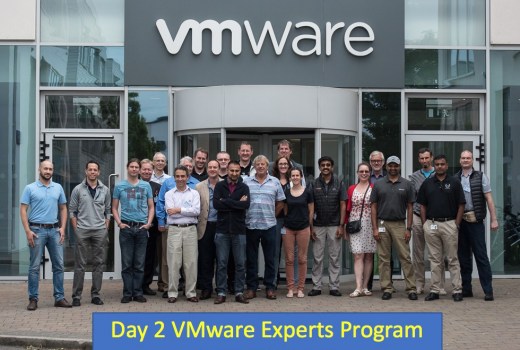
VMware Expert Database Workshop Program Oracle Edition – Day 2

Day 2 kicked off again with another early start at 7am, coupled with the late night, I was a bit tired to say the least, but was all worth it 🙂

Again, it was a very intense day, with lots of presentations and technical deep dives, ending with a lab session:

  • My OCM buddy Yvonne Murphy, kicked the day off by talking to us about “The Best Oracle Support Team on Earth – Global Support Services Oracle Team”
  • Dave Welch, House of Brick, talked to us about “Oracle on vSphere Licensing”
    • Some interesting Oracle license cases of which the main one discussed is available here
  • Jad El-Zein, talked to us about “vRealizeAutomation and Oracle”
  • Andreas Scherr, talked to us about “vSphere Core Storage Fundamentals” & “Modern Converged Storage, & vSAN & vVols”
    • I was impressed with the vSAN concept of using spare drive bays in an ESXi host to put a Hard Disks or SSD Drives in and/or using spare PCIe slots to put a Flash Cards in (including NVMe 🙂 )
    • Then these server attached storage devices are pooled together to provide a shared Datastore that has resilience built in using software rather then hardware 🙂
    • Can be all flash or hybird but each ESXi needs a cache device i.e. SSD Drive or Flash Card
    • More info can be found here
  • Valentin Bondzio, gave us an very enjoyable deep dive on CPU usage in Virtual Environment and how to troubleshoot 🙂
  • We then finished the day with a lab session with Sudhir Bala and Mohan Potheri, where we got to for example:
    • Create a Virtual Hard Drive
    • Attach an Existing Virtual Hard Drive (useful for RAC clusters 🙂 )
    • Then we played a game to stress test a Pure Storage, however I could only get 2Gb a second using 10 sessions running a parallel query of 10 on the largest object in the database.  This is not because the Pure Storage but because of I/O queue in the VMware stack, which we didn’t get time to change but highlight the point 🙂

Another great day of the 3 days workshop, in which I got to gain even more new knowledge in regards to VMware, in particular CPU usage and vSAN 🙂

The day ended with a meal and drinks at The Oliver Plunkett, more socialising with Johannes Ahrends, Ron Ekins, Frits Hoogland, Tim Hall and Mohan Potheri.  Then a nice walk back to the hotel with Mohan Potheri, Johannes Ahrends and Martin Klier.  It’s a small world as I found Martin Klier and I had overlap with some customers and people 🙂  The socialising then continued in the reception lounge with Carl Dudley, Ron Ekins, Frits Hoogland and Tim Hall.

Many thanks to VMware and Pure Storage, I’m looking forward to the rest of the workshop 🙂

My tweets for the day can be seen here.

The VMware Expert Database Workshop Program hashtag is #VMWORA

My related Blog Posts

VMware Expert Database Workshop Program Oracle Edition
VMware Expert Database Workshop Program Oracle Edition – Day 1

Other related Blog Posts

Tim Hall (Oracle Base) – VMware Expert Database Workshop Program Oracle Edition
Tim Hall (Oracle Base) – VMware Workshop – The Journey Begins
Tim Hall (Oracle Base) – VMware Workshop – Day 1
Tim Hall (Oracle Base) – VMware Workshop – Day 2
Michael Corey (Columnist) – VMware Experts Program Oracle Edition
Michael Corey (Columnist) – Day 1 VMware Experts Program Oracle Edition
Michael Corey (Columnist) – Day 2 VMware Experts Program Oracle Edition

If you found this blog post useful, please like as well as follow me through my various Social Media avenues available on the sidebar and/or subscribe to this oracle blog via WordPress/e-mail.

Thanks

Zed DBA (Zahid Anwar)
VMware Expert Database Workshop Program Oracle Edition – Day 1

The journey began with a 9pm flight from Manchester to Cork, I was then picked up by a chauffeur in an S Class Mercedes along with Jan-Peter courtesy of VMware 🙂

We arrived at the posh The Kingsley Hotel at 11:00pm, where Carl Dudley, Ron Ekins, Frits Hoogland and Tim Hall were still in the reception lounge having discussions about Cloud, Storage amongst other topics.  So Jan-Peter and myself joined in until midnight.

The next morning was an early start with a 7am private shuttle ride to VMware Campus in Ballincollig.

It was a very intense day, with lots of presentations, technical deep dives and labs:

  • Mike Corey recapped ‘The Basics of vSphere’
  • Karen Egan VP Support, gave an overview of Global Support Center (GSC) EMEA
  • Then a few presentations from the sponsor Pure Storage regarding their Flash offerings from Carl McQuillan, Somu Rajarathinam and Alejandro Infanzon 🙂
  • Valentin Bondzio gave a deep dive of VMware vSphere Core in particular vMotion, which really impressed me 🙂
  • My OCM buddy Yvonne Murphy, talked about Oracle on VMware “One Woman’s Journey”, which was about her true experience of real life customer problems working within Global Support Center EMEA.  It was reassuring to know VMware has 1,000 support engineers in GSC EMEA in Cork alone and most Support Requests are resolved in 24-58 hours.  We then got the privilege of having a tour of the GSC 🙂
  • We then finished the day with labs session with Sudhir Bala and Mohan Potheri, where we got to for example:
    • Create a Template from a VM guest
    • Create a VM guest from a Template
    • Move a VM guest whilst powered on from one physical host to another using vMotion
    • Increase CPUs and Memory of a VM guest on the fly
    • And more…

It was a great 1st day of a 3 days workshop, in which I got to gain new knowledge in regards to VMware, which I can see help in particular circumstances and requirements 🙂

The day ended with a meal and drinks at SoHo Rooftop Bar & Restaurant, where I got the opportunity to catch up with my OCM buddy Yvonne Murphy, network with new people including: Dean Bolton from VLSS, Valentin Bondzio and Don Sullivan, both from VMware.

It was then the short journey back to the hotel, where I caught up with Tim Hall.  It was then a gather in the hotel reception where conversations continued until late 🙂

Many thanks to VMware and Pure Storage, I’m looking forward to the rest of the workshop 🙂

My tweets for the day can be seen here.

The VMware Expert Database Workshop Program hashtag is #VMWORA

My related Blog Posts

VMware Expert Database Workshop Program Oracle Edition

Other related Blog Posts

Tim Hall (Oracle Base) – VMware Expert Database Workshop Program Oracle Edition
Tim Hall (Oracle Base) – VMware Workshop – The Journey Begins
Tim Hall (Oracle Base) – VMware Workshop – Day 1
Michael Corey (Columnist) – VMware Experts Program Oracle Edition
Michael Corey (Columnist) – Day 1 VMware Experts Program Oracle Edition

If you found this blog post useful, please like as well as follow me through my various Social Media avenues available on the sidebar and/or subscribe to this oracle blog via WordPress/e-mail.

Thanks

Zed DBA (Zahid Anwar)

VMware Expert Database Workshop Program Oracle Edition

The VMware Expert Database Workshop Program started back in 2013 and has been predominately ran in Palo Alto, California.  Last year was the first time it was ran outside Palo Alto, in Sofia, Bulgaria and this year there is an additional workshop in Cork, Ireland being ran on the 18th to 20th of July 2017.

The program brings together selected Database and Application Experts from around the world to meet with VMware senior executives, architects and engineers.  The program entails assortment of open discussions and lab exercises for an intense learning environment with the intention of gaining extensive knowledge of VMware virtualisation infrastructure.

I’m honoured to have been selected by VMware to join the likes of Heli Helskyaho, Carl Dudley, Johannes Ahrends, Jan Timmerman, Niki Christopher, Mikhail Kirpichev, Yann Allandit, Kamran Aghayev, Frits Hoogland and Tim Hall 🙂

I’m really looking forward to the workshop next week, so I can meet new people and to build on my VMware knowledge 🙂

The VMware Expert Database Workshop Program hashtag is #VMWORA, if you wish to follow.

My related Blog Posts

VMware Expert Database Workshop Program Oracle Edition – Day 1

Other related Blog Posts

Tim Hall (Oracle Base) – VMware Expert Database Workshop Program Oracle Edition
Michael Corey (Columnist) – VMware Experts Program Oracle Edition

Related Links

VMware Experts Database Workshop – YouTube Playlist
VMware Experts Database Workshop – Oracle Edition April 2017 – Palo Alto
VMware Experts Database Workshop – SQL workshop – Nov 2016 – Sofia Bulgaria
VMware Experts Database Workshop – Oracle Edition April 2016 – Palo Alto
VMware Experts Database Workshop – SQL Workshop – April 2015 – Palo Alto
VMware Experts Database Workshop – SQL Workshop – Sept 2014 – Palo Alto

If you found this blog post useful, please like as well as follow me through my various Social Media avenues available on the sidebar and/or subscribe to this oracle blog via WordPress/e-mail.

Thanks

Zed DBA (Zahid Anwar)

How to find the Oldest and Newest Interval Partition

I was required to find the oldest and newest interval partition to be able to do some automated maintenance, but found query USER_TAB_PARTITIONS, ALL_TAB_PARTITIONS and DBA_TAB_PARTITIONS was a bit tricky as the HIGH_VALUE is a LONG data type 😦

A quick search on the web and I found a perfect solution from my good friend Tim Hall (Oracle Base), who created a function to convert the LONG into a DATE by executing the HIGH VALUE 🙂

Script: part_hv_to_date.sql

For ease of access, script below (please check Tim’s blog for updates and always ask for permission if you’re going to quote 🙂 ):

CREATE OR REPLACE FUNCTION part_hv_to_date (p_table_owner IN VARCHAR2,
 p_table_name IN VARCHAR2,
 p_partition_name IN VARCHAR2)
 RETURN DATE
-- -----------------------------------------------------------------------------------
-- File Name : https://oracle-base.com/dba/miscellaneous/part_hv_to_date.sql
-- Author : Tim Hall
-- Description : Create a function to turn partition HIGH_VALUE column to a date.
-- Call Syntax : @part_hv_to_date
-- Last Modified: 19/01/2012
-- Notes : Has to re-select the value from the view as LONG cannot be passed as a parameter.
-- Example call:
--
-- SELECT a.partition_name, 
-- part_hv_to_date(a.table_owner, a.table_name, a.partition_name) as high_value
-- FROM all_tab_partitions a;
--
-- Does no error handling. 
-- -----------------------------------------------------------------------------------
AS
 l_high_value VARCHAR2(32767);
 l_date DATE;
BEGIN
 SELECT high_value
 INTO l_high_value
 FROM all_tab_partitions
 WHERE table_owner = p_table_owner
 AND table_name = p_table_name
 AND partition_name = p_partition_name;
 
 EXECUTE IMMEDIATE 'SELECT ' || l_high_value || ' FROM dual' INTO l_date;
 RETURN l_date;
END;
/


With this you can get the oldest interval partition by running the following SQL:

SELECT PARTITION_NAME
FROM DBA_TAB_PARTITIONS P
WHERE TABLE_OWNER = 'ZEDDBA'
AND TABLE_NAME = 'EXAMPLE'
AND PART_HV_TO_DATE(TABLE_OWNER, TABLE_NAME, PARTITION_NAME) = (
SELECT MIN(PART_HV_TO_DATE(TABLE_OWNER, TABLE_NAME, PARTITION_NAME))
FROM DBA_TAB_PARTITIONS
WHERE TABLE_OWNER = P.TABLE_OWNER
AND TABLE_NAME = P.TABLE_NAME);

Output:

SQL> SELECT PARTITION_NAME
   2 FROM DBA_TAB_PARTITIONS P
   3 WHERE TABLE_OWNER = 'ZEDDBA'
   4 AND TABLE_NAME = 'EXAMPLE'
   5 AND PART_HV_TO_DATE(TABLE_OWNER, TABLE_NAME, PARTITION_NAME) = (
   6 SELECT MIN(PART_HV_TO_DATE(TABLE_OWNER, TABLE_NAME, PARTITION_NAME))
   7 FROM DBA_TAB_PARTITIONS
   8 WHERE TABLE_OWNER = P.TABLE_OWNER
   9 AND TABLE_NAME = P.TABLE_NAME);

PARTITION_NAME
--------------------
SYS_P10590

SQL>


And the newest interval partition by running the following SQL:

SELECT PARTITION_NAME
FROM DBA_TAB_PARTITIONS P
WHERE TABLE_OWNER = 'ZEDDBA'
AND TABLE_NAME = 'EXAMPLE'
AND PART_HV_TO_DATE(TABLE_OWNER, TABLE_NAME, PARTITION_NAME) = (
SELECT MAX(PART_HV_TO_DATE(TABLE_OWNER, TABLE_NAME, PARTITION_NAME))
FROM DBA_TAB_PARTITIONS
WHERE TABLE_OWNER = P.TABLE_OWNER
AND TABLE_NAME = P.TABLE_NAME);

Output:

SQL> SELECT PARTITION_NAME
   2 FROM DBA_TAB_PARTITIONS P
   3 WHERE TABLE_OWNER = 'ZEDDBA'
   4 AND TABLE_NAME = 'EXAMPLE'
   5 AND PART_HV_TO_DATE(TABLE_OWNER, TABLE_NAME, PARTITION_NAME) = (
   6 SELECT MAX(PART_HV_TO_DATE(TABLE_OWNER, TABLE_NAME, PARTITION_NAME))
   7 FROM DBA_TAB_PARTITIONS
   8 WHERE TABLE_OWNER = P.TABLE_OWNER
   9 AND TABLE_NAME = P.TABLE_NAME);

PARTITION_NAME
--------------------
SYS_P17718

SQL>


Updates

8th July 2017, changed the query so the sub-query join onto the parent query to avoid having to set the predicates in the sub-query.


If you found this blog post useful, please like as well as follow me through my various Social Media avenues available on the sidebar and/or subscribe to this oracle blog via WordPress/e-mail.

Thanks

Zed DBA (Zahid Anwar)


Adding a Datafile to Tablespace

When monitoring Tablespace Usage (see my Tablespace Usage blog post for more info), there comes a point when you need to add a datafile to a tablespace to allow for growth and more importantly get below a monitoring threshold for example in OEM or OpsView.

Query to see Current Datafiles State

To see the current state of the datafiles:

set pages 999
set lines 400
col FILE_NAME format a75
select d.TABLESPACE_NAME, d.FILE_NAME, d.BYTES/1024/1024 SIZE_MB, d.AUTOEXTENSIBLE, d.MAXBYTES/1024/1024 MAXSIZE_MB, d.INCREMENT_BY*(v.BLOCK_SIZE/1024)/1024 INCREMENT_BY_MB
from dba_data_files d,
 v$datafile v
where d.FILE_ID = v.FILE#
order by d.TABLESPACE_NAME, d.FILE_NAME;

Output from Current Datafiles State

This is the output you will get from the query:

TABLESPACE_NAME FILE_NAME                                      SIZE_MB AUT MAXSIZE_MB INCREMENT_BY_MB
--------------- ---------------------------------------------- ------- --- ---------- ---------------
VERS_DATA       +DATAC1/VERS/DATAFILE/vers_data.395.891367103    32767 YES      32767            1024
...
VERS_DATA       +DATAC1/VERS/DATAFILE/vers_data.772.947087161     4096 YES      32767            1024
VERS_INDEX      +DATAC1/VERS/DATAFILE/vers_index.434.891367657    3072 YES      32767            1024
VERS_INDX       +DATAC1/VERS/DATAFILE/vers_indx.422.891367801    32767 YES      32767            1024
...
VERS_INDX       +DATAC1/VERS/DATAFILE/vers_indx.783.947764359    10240 YES      32767            1024
SNP_DATA        +DATAC1/VERS/DATAFILE/snp_data.421.891367815      1024 YES      32767            1024
SYSAUX          +DATAC1/VERS/DATAFILE/sysaux.488.891349085       31500 YES 32767.9844              10
SYSAUX          +DATAC1/VERS/DATAFILE/sysaux.577.909753421       12288 YES      12288              10
SYSTEM          +DATAC1/VERS/DATAFILE/system.487.891349083         890 YES 32767.9844              10
UNDOTBS1        +DATAC1/VERS/DATAFILE/undotbs1.489.891349085     30565 YES 32767.9844               5
UNDOTBS2        +DATAC1/VERS/DATAFILE/undotbs2.491.891349091     20555 YES 32767.9844               5
USERS           +DATAC1/VERS/DATAFILE/users.492.891349091            5 YES 32767.9844            1.25

273 rows selected.

SQL>

The … represents the several lines removed to make the output readable 🙂

Add Datafile to Tablespace

To add a datafile to ‘VERS_DATA‘ to be initially 10G, auto extendable by 1G to maxsize of 32Gb:

ALTER TABLESPACE VERS_DATA ADD DATAFILE '+DATAC1' SIZE 10G AUTOEXTEND ON NEXT 1G MAXSIZE 32767M;

See Oracle Documentation for more info and Syntax:

https://docs.oracle.com/database/121/SQLRF/statements_3002.htm

Once added you’ll see the datafile in the above query:

TABLESPACE_NAME FILE_NAME                                      SIZE_MB AUT MAXSIZE_MB INCREMENT_BY_MB
--------------- ---------------------------------------------- ------- --- ---------- ---------------
VERS_DATA       +DATAC1/VERS/DATAFILE/vers_data.395.891367103    32767 YES      32767            1024
...
VERS_DATA       +DATAC1/VERS/DATAFILE/vers_data.772.947087161     4096 YES      32767            1024
VERS_DATA       +DATAC1/VERS/DATAFILE/vers_data.774.947426643    10240 YES      32767            1024
VERS_INDEX      +DATAC1/VERS/DATAFILE/vers_index.434.891367657    3072 YES      32767            1024
VERS_INDX       +DATAC1/VERS/DATAFILE/vers_indx.422.891367801    32767 YES      32767            1024
...
VERS_INDX       +DATAC1/VERS/DATAFILE/vers_indx.783.947764359    10240 YES      32767            1024
SNP_DATA        +DATAC1/VERS/DATAFILE/snp_data.421.891367815      1024 YES      32767            1024
SYSAUX          +DATAC1/VERS/DATAFILE/sysaux.488.891349085       31500 YES 32767.9844              10
SYSAUX          +DATAC1/VERS/DATAFILE/sysaux.577.909753421       12288 YES      12288              10
SYSTEM          +DATAC1/VERS/DATAFILE/system.487.891349083         890 YES 32767.9844              10
UNDOTBS1        +DATAC1/VERS/DATAFILE/undotbs1.489.891349085     30565 YES 32767.9844               5
UNDOTBS2        +DATAC1/VERS/DATAFILE/undotbs2.491.891349091     20555 YES 32767.9844               5
USERS           +DATAC1/VERS/DATAFILE/users.492.891349091            5 YES 32767.9844            1.25

274 rows selected.

SQL>

Related Blog Posts:
Querying Tablespace Usage
Adding a Datafile to Temp Tablespace

If you found this blog post useful, please like as well as follow me through my various Social Media avenues available on the sidebar and/or subscribe to this oracle blog via WordPress/e-mail.

Thanks

Zed DBA (Zahid Anwar)